

If you’re still on Windows 10, upgrading to Windows 11 through Windows Update is the simplest path, it’s free for licensed Windows 10 users, keeps your files and installed apps intact, and takes far less effort than a clean install. Here’s exactly how to do it, plus what to check first and what to do if your PC isn’t eligible yet.
Before you start: confirm you actually qualify

Don’t skip this step. Go to Settings, then Windows Update, and check if Windows 11 is already being offered to your device. If it isn’t showing up, download Microsoft’s PC Health Check app directly from microsoft.com and run a compatibility check. It’ll tell you definitively whether your PC meets Windows 11’s requirements (a supported 64-bit processor, TPM 2.0, Secure Boot support, 4GB RAM, and 64GB storage) and specifically which requirement is failing if it isn’t eligible. We’ve written a full walkthrough of this exact process, including how to fix common TPM and Secure Boot failures, in How to Check If Your PC Is Compatible with Windows 11.
Back up your files first, even for an in-place upgrade
An in-place upgrade through Windows Update is designed to preserve your files, settings, and installed applications, and it generally does exactly that. But “generally” isn’t “always,” and a failed or interrupted upgrade is a genuinely bad time to discover you didn’t have a backup. Before you begin:
Back up important files to an external drive or a cloud service like OneDrive. If you use Windows Backup (built into Windows 10), enable it and let it sync your settings and files through your Microsoft account, which also makes it easier to restore your setup on a new device later if needed. This step takes a few minutes and meaningfully reduces your risk if anything goes wrong mid-upgrade. We go deeper into backup strategy specifically before major Windows updates in a dedicated guide, but at minimum, don’t skip this before starting.
Step 1: Check for the update through Windows Update
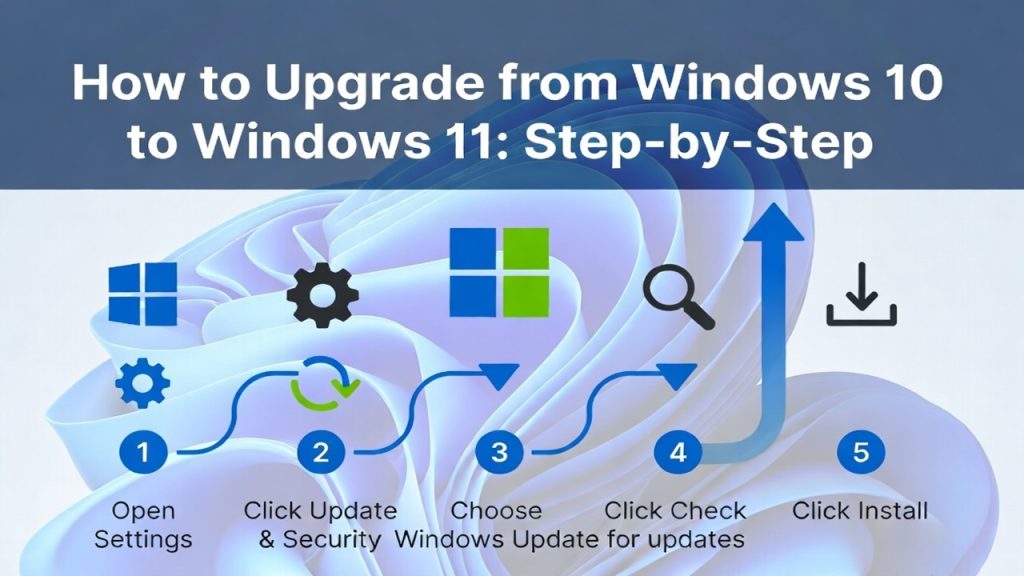
Go to Settings, then Update & Security (or just Windows Update on newer Windows 10 builds), and click “Check for updates.” If your PC is eligible and Microsoft has made Windows 11 available for your specific hardware, you’ll see an option to download and install it directly from this screen.
Microsoft doesn’t push Windows 11 to every eligible device simultaneously. It rolls out in phases based on hardware, driver compatibility, and other factors, so seeing “You’re up to date” here doesn’t necessarily mean your device isn’t eligible, it may just mean the rollout hasn’t reached your specific device yet.
Step 2: Use the Installation Assistant if Windows Update hasn’t offered it yet
If you’ve confirmed compatibility through PC Health Check but Windows Update still isn’t offering the upgrade, Microsoft’s Windows 11 Installation Assistant lets you initiate the upgrade manually rather than waiting for the phased rollout to reach you. You’ll find this on the same Windows 11 download page as the ISO and Media Creation Tool. Download it, run it as administrator, and follow the prompts. This still performs an in-place upgrade, preserving your files and apps, just without waiting on Microsoft’s rollout schedule.
Step 3: Let the upgrade download and install
Once started, Windows will download the necessary files, verify them, and begin the installation process. This can take anywhere from twenty minutes to a couple of hours depending on your internet speed and hardware, and your PC will restart multiple times during the process. Don’t interrupt it, unplug it, or manually power it off during this stage.
Step 4: Complete setup after the restart
After the final restart, you’ll land on a setup screen to confirm your region, keyboard layout, and privacy settings, similar to what you’d see on a brand new PC, except your files, apps, and most settings carry over automatically. Sign in with your Microsoft account if prompted, and you’re done.
What actually happens to your files and apps during an in-place upgrade
Your personal files (documents, photos, downloads) remain exactly where they were. Installed applications generally carry over too, though some older or highly specialized software occasionally needs reinstalling or an update to work correctly post-upgrade, particularly software that interacts closely with the operating system at a low level (security software, some driver utilities, older accessibility tools). It’s worth checking a handful of your most-used applications after the upgrade completes just to confirm everything launches correctly.
Do you need a new product key?
No, in almost all cases. If your Windows 10 installation is already activated and tied to a Microsoft account, or activated through a digital license, Windows 11 will typically activate automatically once the upgrade completes, using that same underlying license. You generally don’t need to purchase or enter a new product key specifically for this upgrade path.
What if the upgrade gets stuck or fails partway through?
This does happen occasionally, usually due to insufficient storage space, an interrupted internet connection during download, or driver compatibility issues with specific hardware. If the upgrade fails:
Restart your PC and try running Windows Update again, since Microsoft’s servicing stack sometimes retries and succeeds on a second attempt without any changes needed on your end. Check available storage. Windows 11 needs meaningfully more free space during the upgrade process itself than its final installed footprint, so having only just enough space for the finished install can cause a failure partway through. Temporarily disconnect non-essential USB devices and external drives, since driver conflicts with peripherals occasionally interrupt the process. If it keeps failing, downloading the ISO directly and running setup.exe manually sometimes succeeds where the Windows Update path doesn’t, since it bypasses some of the phased rollout logic. Our full guide to that route is in How to Download the Official Windows 11 ISO from Microsoft.
If your PC isn’t eligible for Windows 11 at all
If PC Health Check confirms your hardware genuinely doesn’t meet the requirements (most commonly an unsupported processor rather than a fixable TPM/Secure Boot setting), you’re not without options. Microsoft’s free consumer Extended Security Updates program was recently extended, now covering Windows 10 devices through October 12, 2027, giving you real breathing room to plan a hardware replacement rather than facing an immediate security cliff. We break down exactly how that program works and how to enroll in our detailed comparison, Windows 12 vs Windows 10: Should You Upgrade Now or Wait?.
Should you wait for whatever comes after Windows 11 instead?
If part of your hesitation about upgrading is hoping to skip straight to a rumored next-generation Windows release, it’s worth knowing plainly that there’s no confirmed release date for that, and Microsoft has stated directly that near-term plans don’t include a new OS version. Given Windows 11 is free, actively supported, and getting genuine improvements throughout 2026, there’s little practical upside to delaying an eligible upgrade on the hope of an unconfirmed future product. For the current status of that speculation, see our Windows 12 release date and status tracker.
Reverting back to Windows 10 if you change your mind
Worth knowing before you upgrade: Windows 11 gives you a limited window (typically 10 days) after upgrading during which you can roll back to Windows 10 through Settings, System, Recovery, without needing a full reinstall or losing your files. After that window closes, Windows removes the old files it was keeping for a potential rollback, and reverting requires a full backup-and-reinstall process instead. If you’re unsure about the upgrade, it’s worth testing your regularly used software within that first 10-day window rather than assuming everything’s fine and moving on.
Quick answers
Is upgrading from Windows 10 to Windows 11 actually free? Yes, for anyone with a licensed, activated copy of Windows 10. There’s no additional cost for the upgrade itself.
Will I lose my files during the upgrade? An in-place upgrade through Windows Update or the Installation Assistant preserves your files, apps, and most settings. Backing up beforehand is still a smart precaution rather than something to rely on the process alone for.
How long do I have to roll back to Windows 10 if I don’t like Windows 11? Typically 10 days after upgrading, accessible through Settings, System, Recovery, without needing a full reinstall.
What if Windows Update never offers me the upgrade? If PC Health Check confirms your hardware is eligible, use the Windows 11 Installation Assistant to initiate the upgrade manually instead of waiting for the phased rollout.
My PC isn’t eligible. What are my actual options? Enroll in Windows 10’s Extended Security Updates program, now covering devices through October 2027, while you plan a hardware upgrade on your own timeline.